See what actually landed
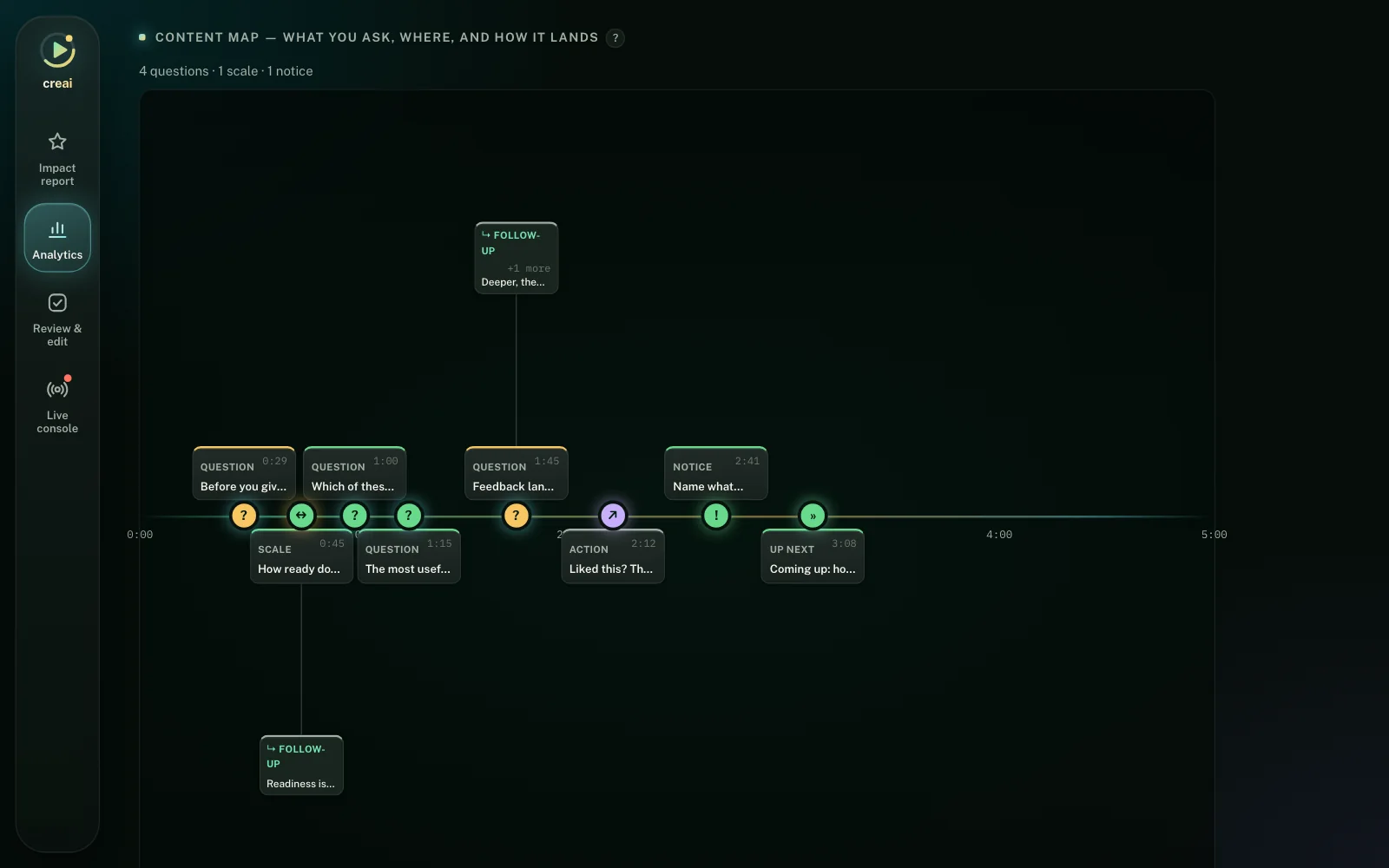
Every answer is tied to the exact moment it was given, so you can tell which ideas took and which didn’t.
For creators who teach on YouTube
Creai adds a quiet question to your YouTube videos at the exact moment it belongs. Viewers answer in one tap. You see what landed, what confused, and where they drifted.
Sign in with Google · identity only, no YouTube access requested · Chrome on desktop
How Creai is different
What changes for you
Every answer is tied to the exact moment it was given, so you can tell which ideas took and which didn’t.
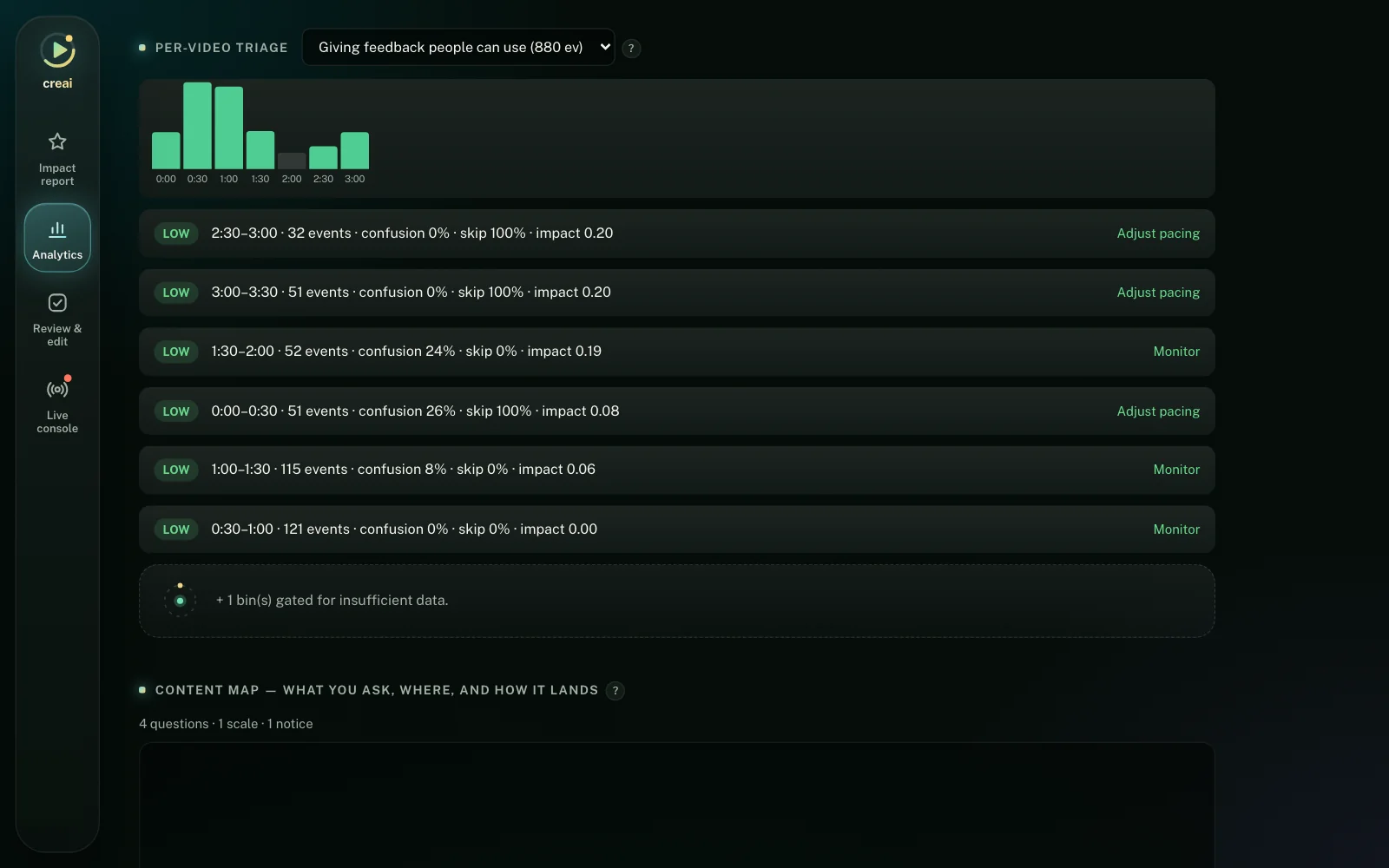
Drop-offs and “same wrong answer” warnings open the prompt, ready to edit. One click from problem to fix.
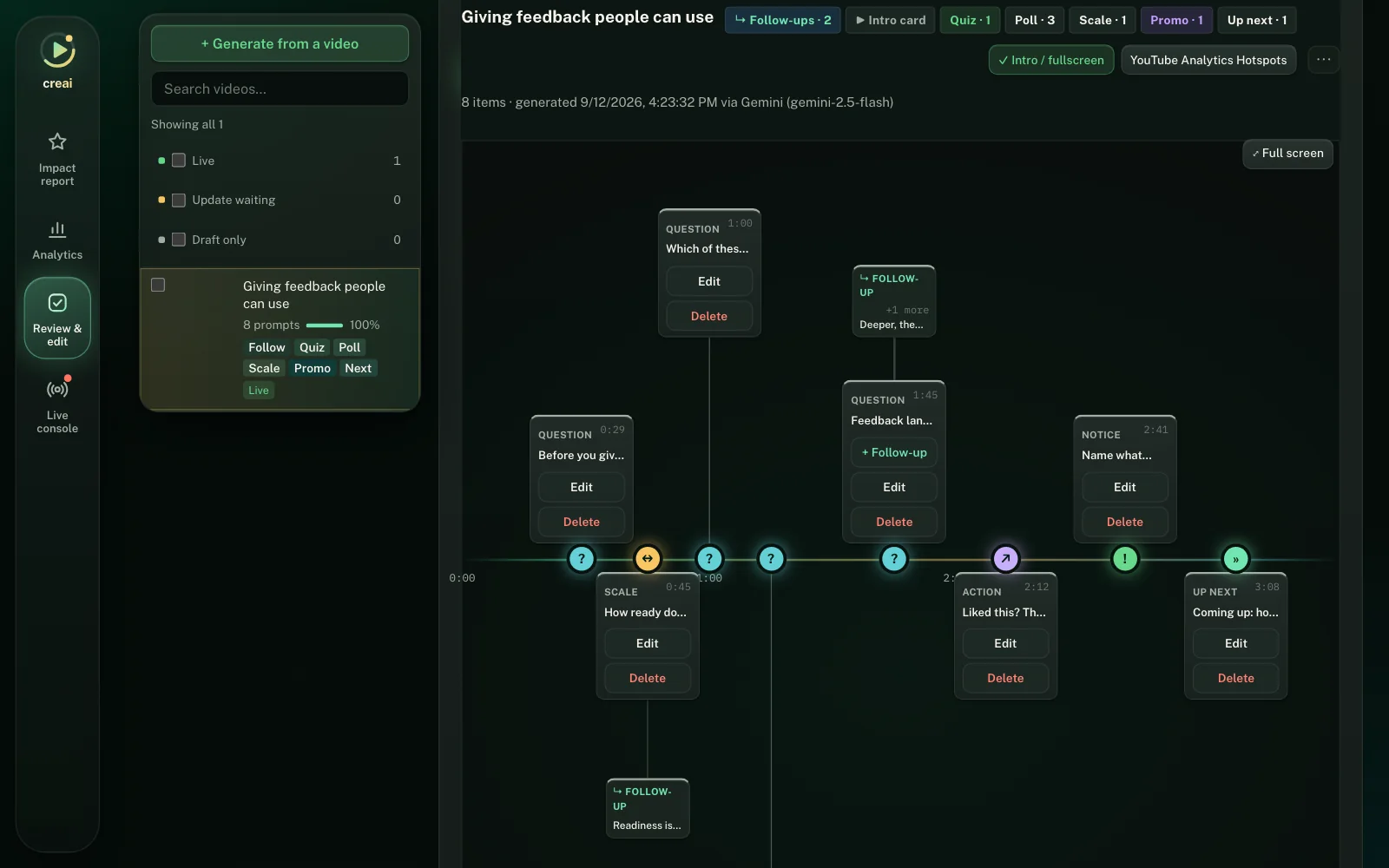
Prompts are drafted from your transcript in your voice. Nothing reaches a viewer until you’ve approved it.
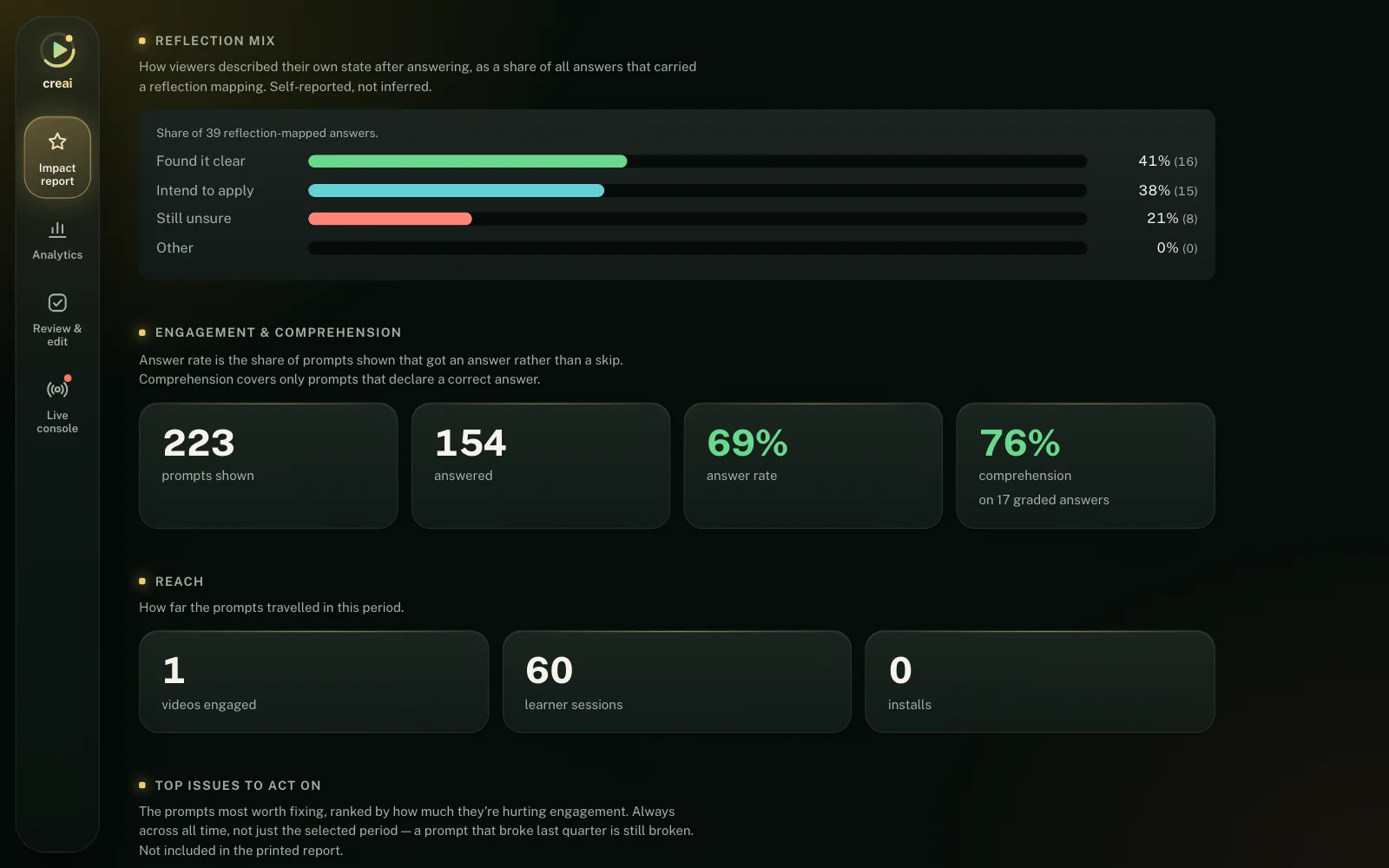
An Impact Report for a sponsor or a course page, including how many viewers who said “I want to apply this” later did.
Explore
What you do, what your viewers see, and what you learn. Pick a feature.
What you do
What your viewers see
What you learn
Generate
Pick a video from your channel or paste a link. Say what to focus on in plain words, and choose how many prompts and how much follow-up. Creai drafts them from your transcript and hands you a draft. Nothing is live yet.
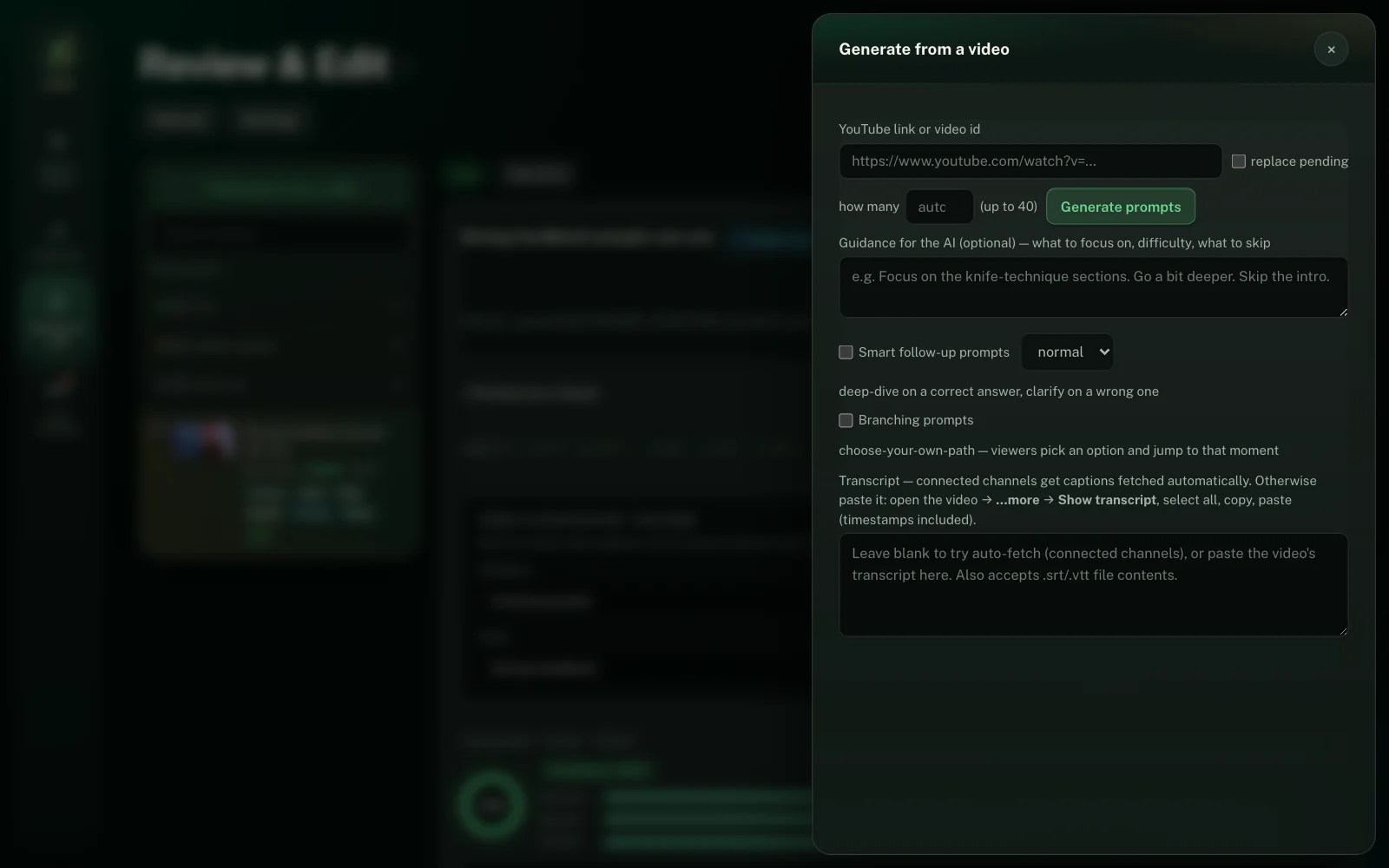
Review & edit
Drag any prompt to the second it belongs. Edit the wording, the options, the right answer. The live preview is the same card your viewers get. Approve to publish, and every save keeps a backup.
Live
Send a prompt while you’re live. It appears in your viewers’ overlay within seconds and clears itself when its time is up.
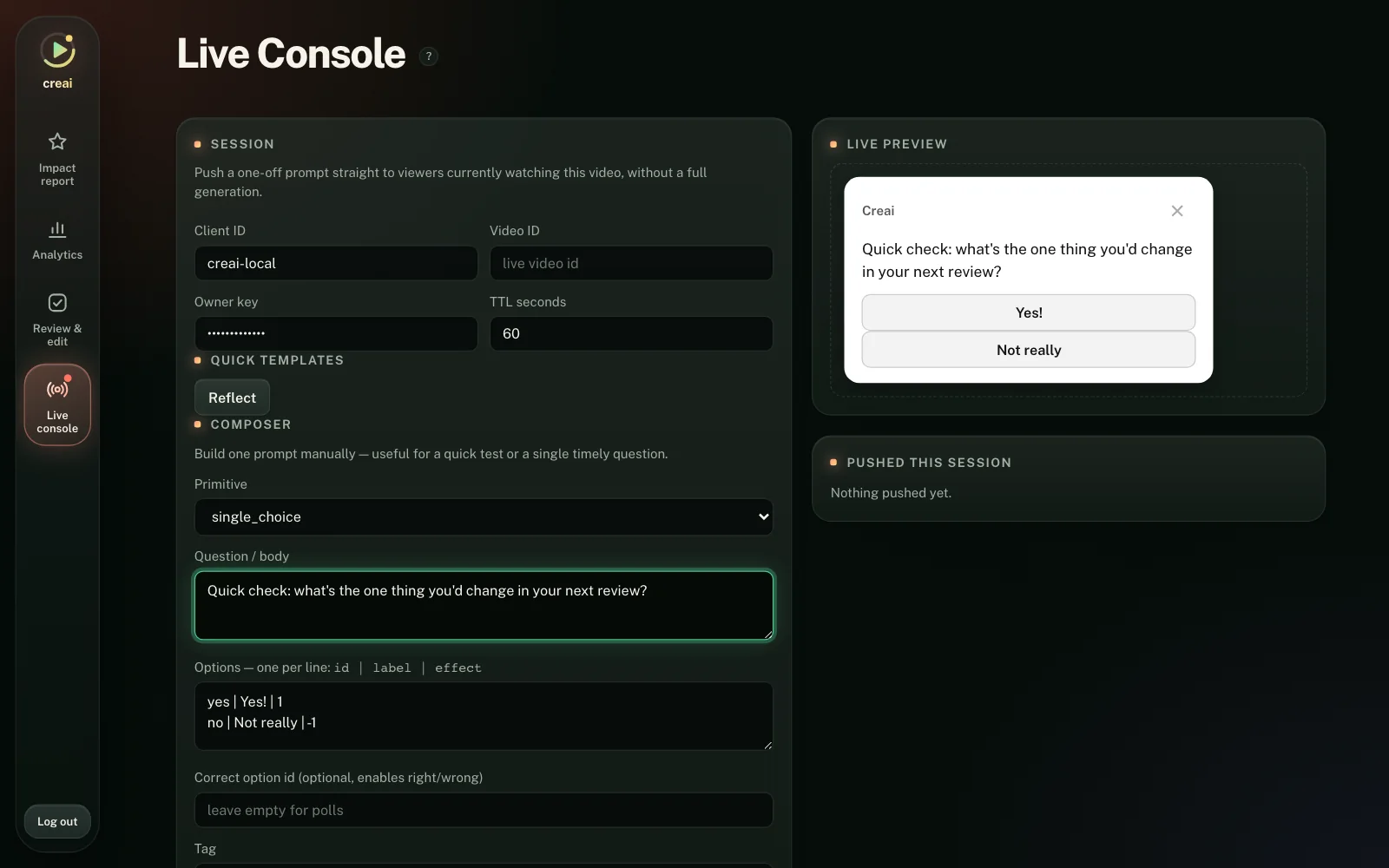
On the video
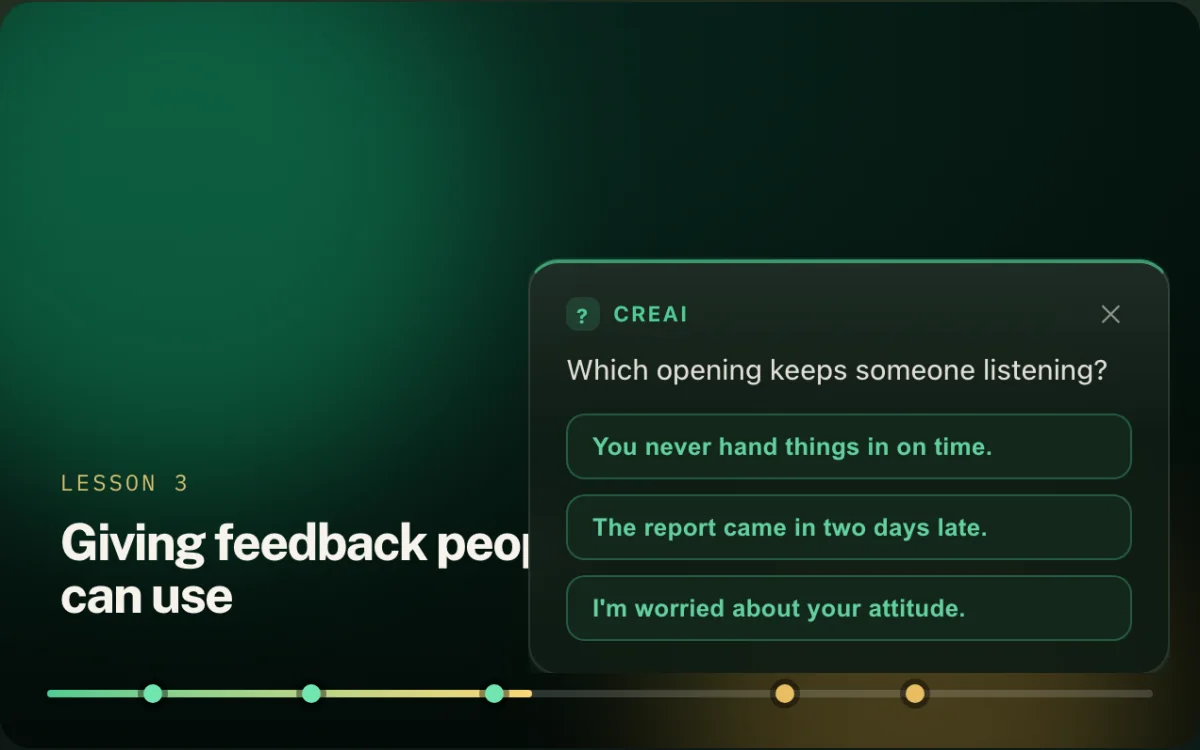
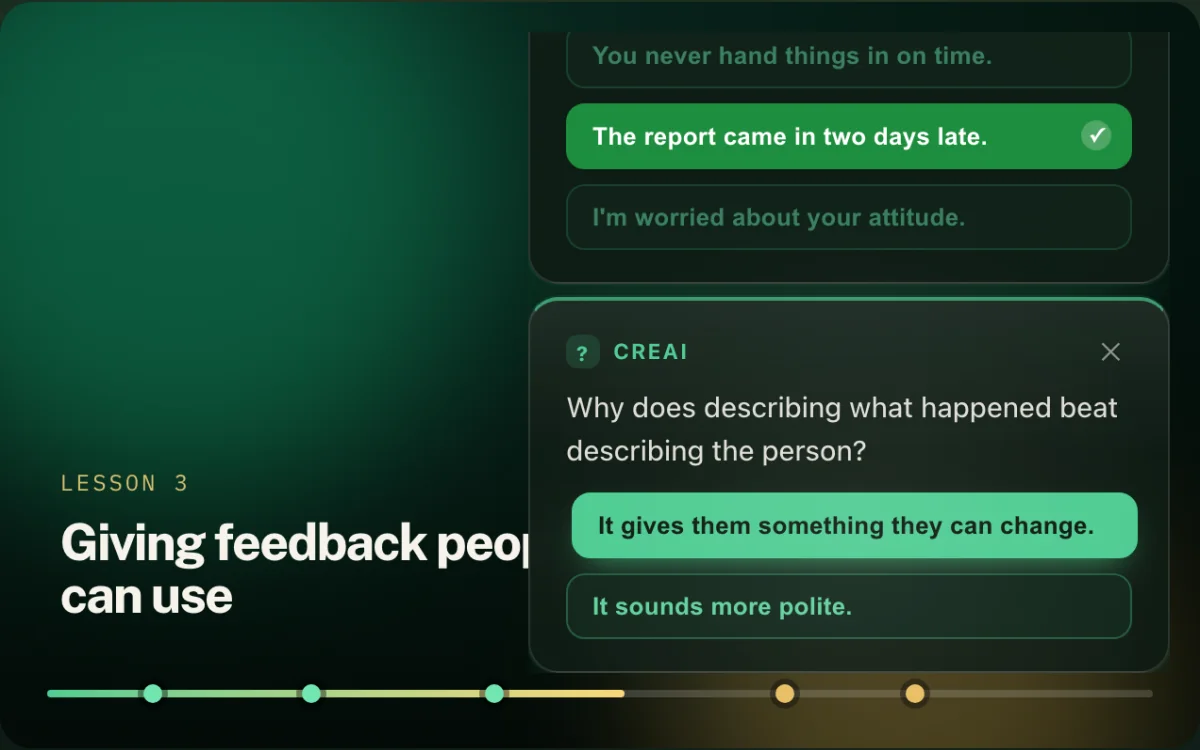
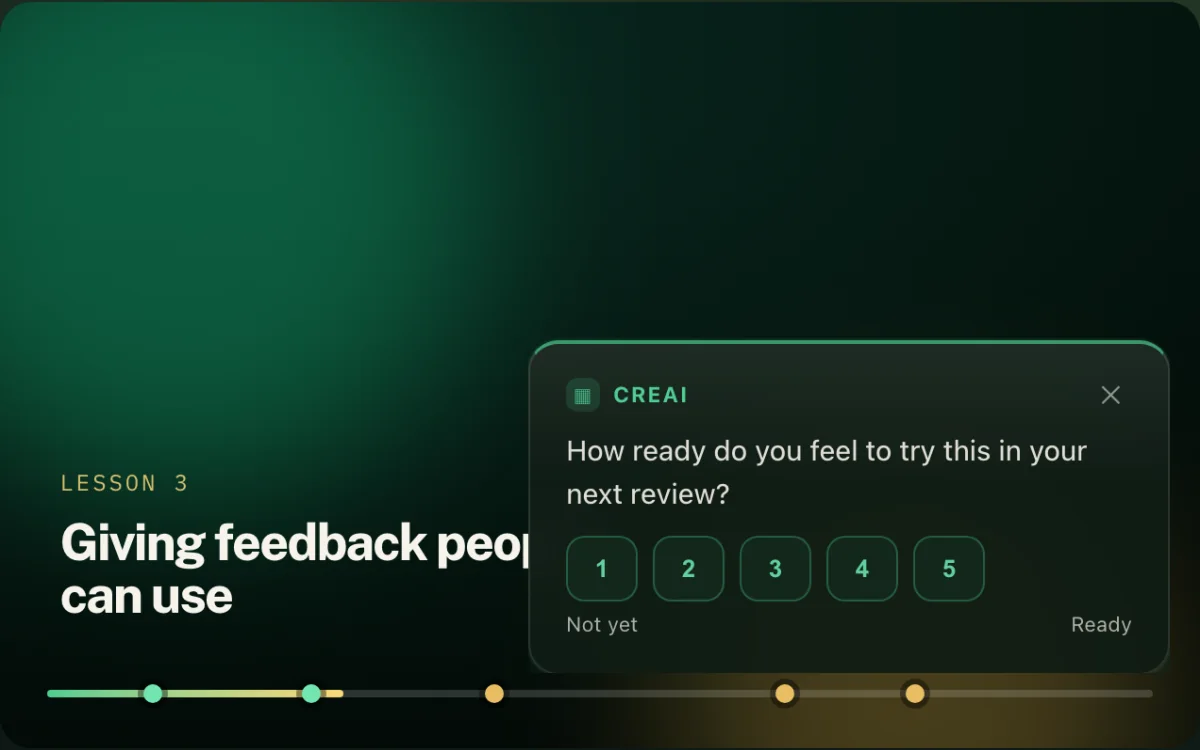
Questions, ratings, notes and follow-ups arrive over the player where they belong. They never pause your video, can be dismissed or snoozed, and stay out of the way of ads. A right answer can go deeper, a wrong one can clarify, and an option can jump a viewer to another part of the video.
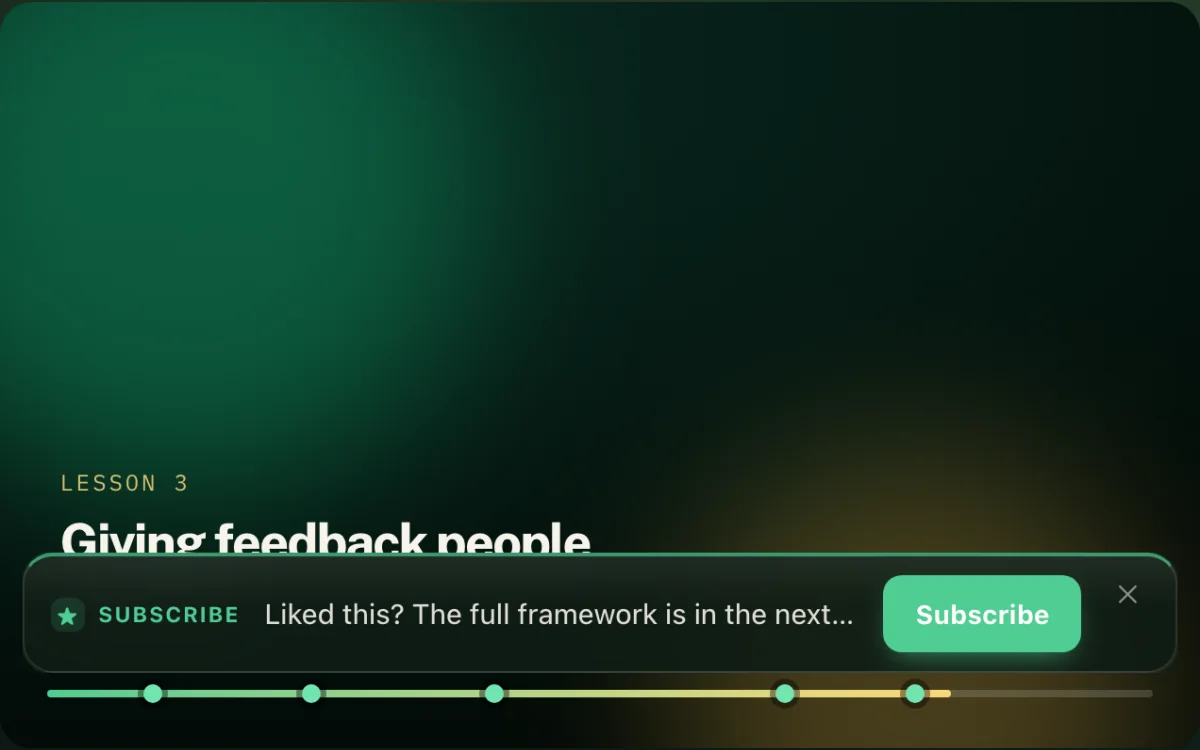
Action cards
Put a subscribe, shop, tip or sponsor card exactly where the video makes the case for it, and see the clicks per card. Paid and affiliate links carry a disclosure label automatically.
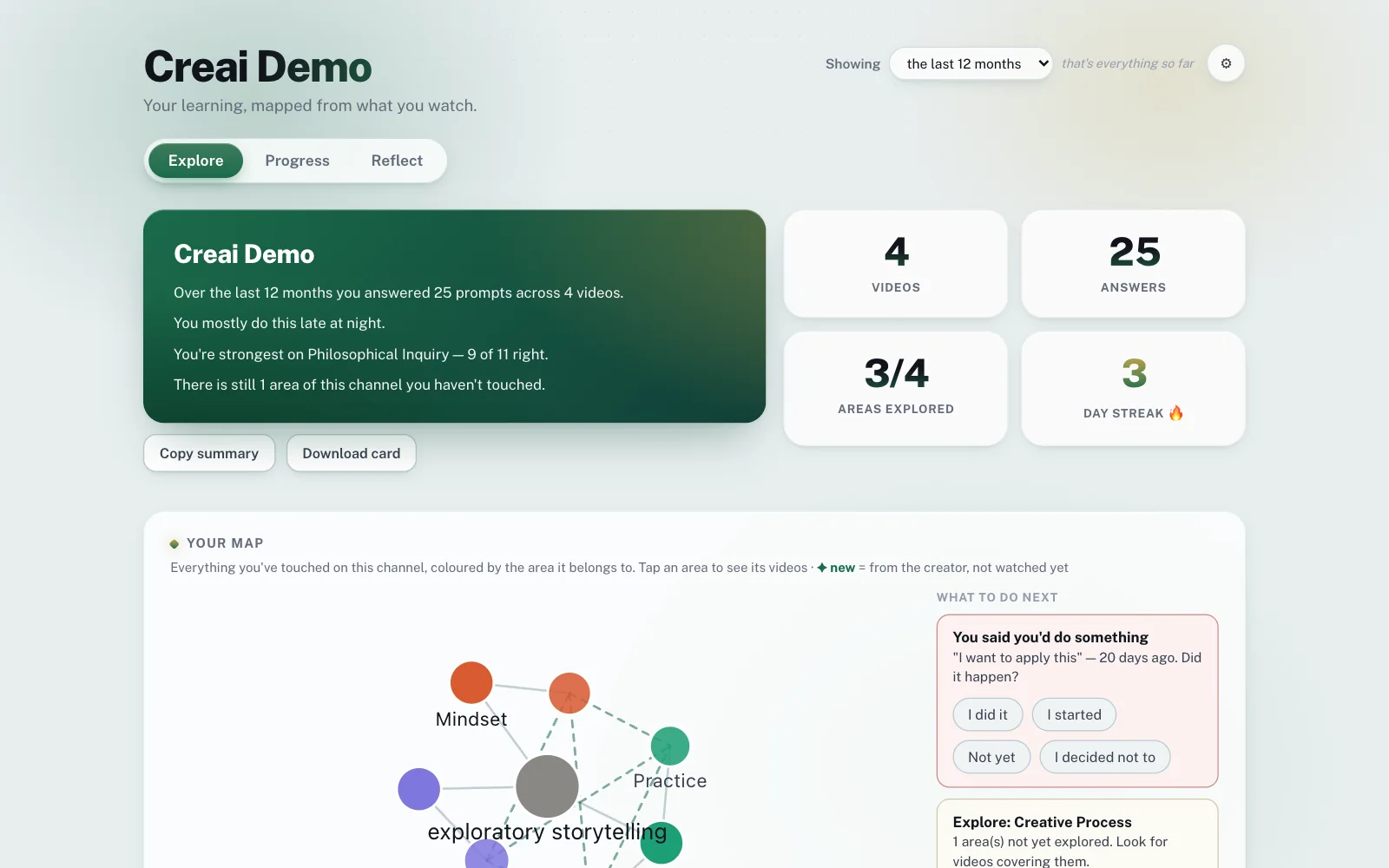
Viewer dashboard
Viewers get a private space of their own: a map of what they’ve watched, their notes, the things they said they’d apply, and a gentle check-in later. It lives on their device.
Analytics
A ranked action list says what to fix first. See where viewers leave, which wrong answer many of them picked, and how each prompt landed along the timeline. AI insights turn the numbers into plain sentences.
Impact Report
One report for a sponsor or a course page: how many prompts reached how many viewers, how they answered, and how many who said they’d apply something came back to say they did. Print it or export it. It counts the viewers who chose to share.
Try a card
This is the real card, not a mock-up — the same code runs over real YouTube pages. Pick one, then answer it.
Ready to see it on one of your videos?
Sign in to startHow it starts
Sign in with Google. Connecting your channel is a separate, optional step — or just paste a video link.
Creai drafts prompts from your transcript. You edit on a timeline and approve what goes live.
Viewers add the small Chrome extension (installed by hand for now) and your prompts appear over your videos on YouTube. No account for them, one tap to answer.
Your audience
A few answers
No. Cards sit over the player and never pause it. Viewers can dismiss or snooze them, they’re capped per video, and they stay quiet during ads.
The small Chrome extension, on desktop. They answer in one tap and don’t need an account. For now it’s installed by hand from a folder, and the console walks you through it. That one extra step for your audience is the main thing to weigh.
Prompts are drafted from your own transcript, with a voice setting and plain-language guidance for each video. You can edit or reject anything before it goes live.
Not by default. The card every channel starts with asks how it landed — “That’s clear”, “I want to apply this”, “I’m still unsure” — and nobody is scored. When you do want a right answer, you can add one, and a right pick can open a deeper follow-up.
Your own channel’s. You connect the channel or claim it, and prompts can only be made for videos on it.
When you press Generate, the transcript of the video you picked goes to an AI provider to draft the prompts. Viewers’ answers are never sent to it; AI insights read only aggregated totals.
It’s optional. Connecting lets Creai confirm the channel is yours, list your videos and fetch your own captions. It never posts, comments or changes anything, and you can disconnect at any time, which ends our access at Google. The privacy policy has the details.
Yes. You can send a prompt mid-stream; it appears in the overlay and clears itself when its time is up.
Viewers can export or wipe everything from their dashboard, or simply remove the extension. You can disconnect your channel at any time.
Sign in with Google, pick one of your videos, and see the prompts it drafts for you.
Sign in to start